

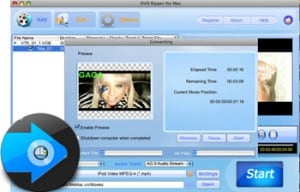
The best Mac DVD Ripper software to rip DVD on Mac
MacVideo DVD Ripper is an all-in-one Mac DVD Ripper program. With an advanced decoder built in, this Mac DVD Ripper can rip DVD with perfect video quality and fast speed on Mac OS. It is a professional tool for Mac users to rip DVD movies to various video formats such as AVI, MPEG, WMV, MP4, DivX, etc for playback on iPod, iPhone, Apple TV, PSP, YouTube, and all kinds of cell phones. This Mac DVD Ripper software is everything you need to put your DVD movies on your mobile devices.
- Rip DVD movies to various video and audio formats on Mac OS.
- Support all sorts of portable players, such as iPod, iPad, PSP, etc.
- Powerful video editing functions like clip, crop video files.
Note: Windows version is also available
 System Requirements
Intel-based Mac(32-bit or 64-bit)
Mac OS X 10.4, 10.5, 10.6 or 10.7 Lion
Key Features
Rip DVD on Mac OS
Rip DVD to any popular video format like FLV, MP4, AVI, M4V, MOV, Rmvb, M2TS, 3GP, MPG, FLV, MKV, WMV, and audio formats including MP3, M4A, AAC, WAV, OGG, APE, and so on.Rip DVDs for Multimedia Devices
Mac DVD Ripper classifies the output formats by device type and offers optimized conversion solutions for all kinds of portable devices including iPod, iPad, PSP, Apple TV, and many others.Customize output effect
Provide you with various video and audio settings including video resolution, frame rate, bit rate, and so on. Allow you to adjust video brightness, contrast and saturation, apply a special video effect to your video.Powerful Video Editing Functions
You can trim the video to get any part of the DVD movie you would like to rip, crop the video to get rid of the margins, adjust the frame size, embed watermarks, merge multiple files to one file, and so on.More additional functions
The Mac DVD Ripper can capture pictures from DVDs during preview and save them as BMP, JPG images, and shutdown your computer automatically after the conversion finished.Developed specifically for Mac users
Mac DVD Ripper is a professional DVD to Video Converter developed specifically for Mac users, and it supports Mac OS X 10.4 or higher operating system.
User Guide
Step 1. Insert a DVD into your drive and launch Mac DVD Ripper.
Click the Add button, select the folder of your DVD movie, and click OK. After the video loaded, you can see all the chapters and titles in it, and then you can check the ones you want to convert. If you want to convert the whole movie, you can just keep all the titles or chapters checked.
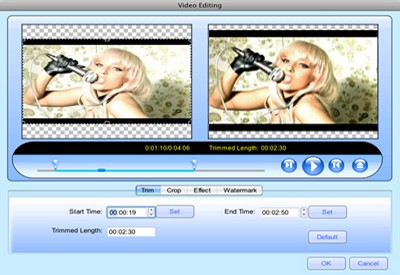
Step 2. Edit the video file (Optional)
- Crop Frame Size to retain what you want.
- Customize video effect by setting video Brightness, Contrast, Saturation.
- Trim your favorite segment by clicking “Start Time” and “End Time” buttons.
- Embed watermarks to your output videos.
Step 3. Output Settings of Mac DVD Ripper
- Select an output format from the Profile drop-down list;
- Click the Settings button to set Resolution, Frame Rate, Video Bitrate and Video Codecs, Sample Rate, Channel, Audio Bitrate and Audio Codecs.
Step 4. Click the Start button to start the DVD ripping task on Mac.